

Prerequisites
Before getting started, make sure you have:- Android Studio (latest version recommended)
- Android Device or Emulator with Android API level 26 (Android 8.0) or above
- Java 11 or above
- Internet connection (required for CometChat services)
Complete Integration Workflow
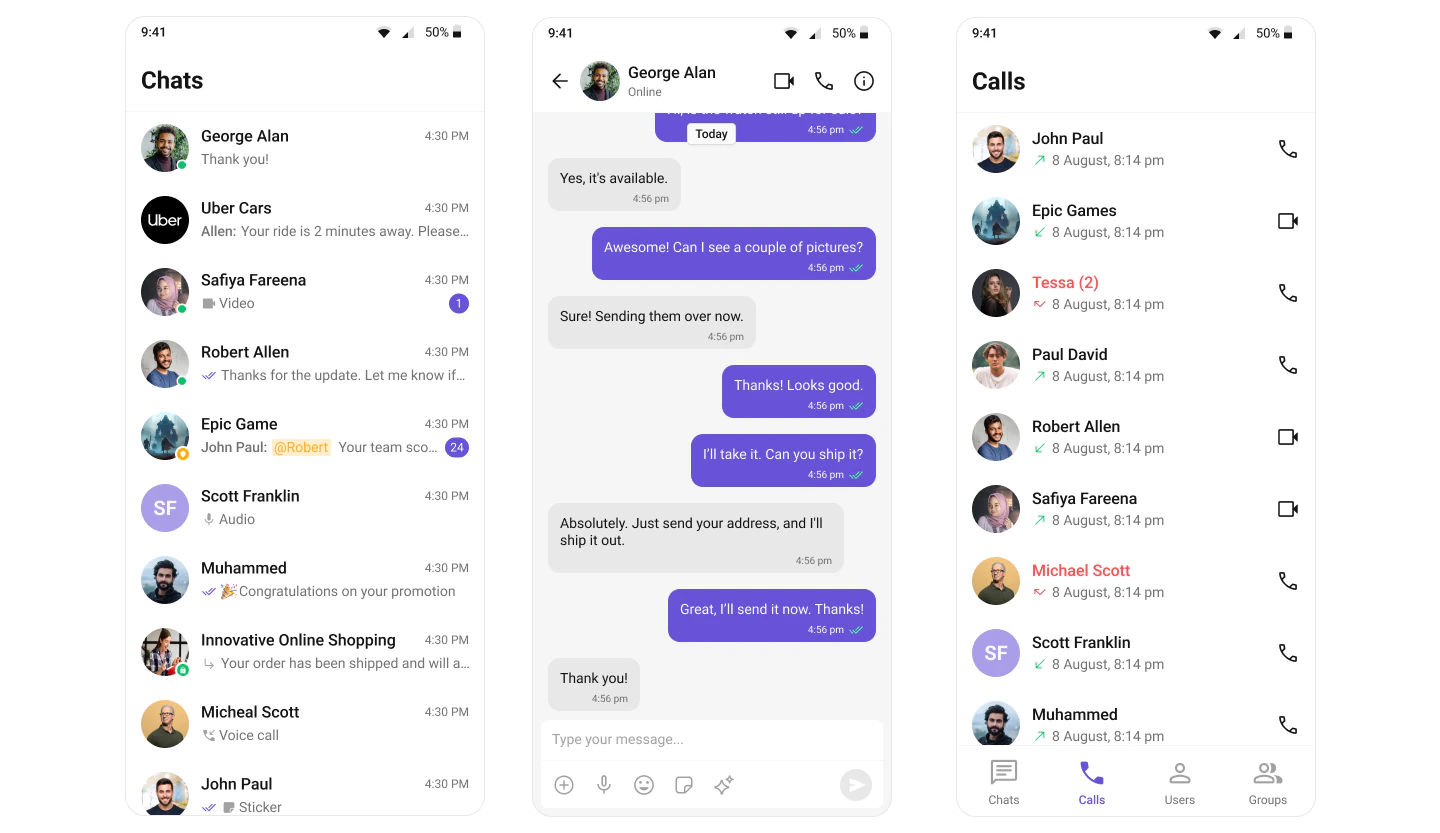
- Design Your Chat Experience - Use the UI Kit Builder to customize layouts, features, and styling.
- Review and Export - Review which features will be enabled in your Dashboard, toggle them on/off, and download the generated code package.
- Preview Customizations - Optionally, preview the chat experience before integrating it into your project.
- Integration - Integrate into your existing application using either the Gradle Plugin or Module Import method.
- Customize Further - Explore advanced customization options to tailor the chat experience.
Launch the UI Kit Builder
- Log in to your CometChat Dashboard.
- Select your application from the list.
- Navigate to Integrate → Android → Launch UI Kit Builder.
Integration Options
Choose one of the following integration methods based on your needs:| Option | Best For | Complexity |
|---|---|---|
| Gradle Plugin (Recommended) | New projects or existing projects where you want full control over customization | Medium |
| Module Import | Quick integration when you want a ready-made module to plug-and-play | Easy |
Option 1: Gradle Plugin Integration (Recommended)
This method gives you full control over customization and is recommended for most projects.Step 1: Add CometChat Repository
Add the CometChat Maven repository to your project-levelsettings.gradle.kts file in both pluginManagement and dependencyResolutionManagement:
Step 2: Add Jetifier Flag
Add the Jetifier flag to yourgradle.properties file:
Step 3: Add UI Kit Dependencies
Add the CometChat UI Kit dependencies to your app-levelbuild.gradle.kts:
Step 4: Apply the Builder Settings Plugin
Add the CometChat Builder Settings plugin to your app-levelbuild.gradle.kts:
Step 5: Add Configuration JSON File
Copy thecometchat-builder-settings.json file from your exported code into your app module’s root directory (same level as build.gradle.kts).
The
cometchat-builder-settings.json file contains all your feature toggles, layout settings, and styling configuration from the UI Kit Builder.Step 6: Build to Generate Settings
Build your project using Android Studio or run:CometChatBuilderSettings.kt— Contains all feature flags and configuration constants- Necessary styles in your theme
Step 7: Copy BuilderSettingsHelper
Copy theBuilderSettingsHelper.kt file from the sample app to your project:
- Source:
src/main/java/com/cometchat/builder/BuilderSettingsHelper.kt - Destination:
src/main/java/com/yourpackage/BuilderSettingsHelper.kt
Update the package declaration in
BuilderSettingsHelper.kt to match your project’s package name. Also remove the applySettingsToBottomNavigationView method if you’re not using the sample app’s navigation structure.Step 8: Add Font Resources
Copy thefont folder from the sample app to your project’s resources:
- Source:
src/main/res/font - Destination:
src/main/res/font
Step 9: Set the Builder Theme
Update yourAndroidManifest.xml to use the CometChat Builder theme:
Step 10: Apply Settings to UI Components
Use theBuilderSettingsHelper to apply your configuration to CometChat UI components:
Step 11: Access Generated Constants
You can access the generated constants directly in your code:Option 2: Import Sample App as Module
This method is ideal if you want a ready-made module to plug-and-play, or wish to migrate features from the sample app to your main app.Step 1: Run the Sample App
First, run the exported sample app from the CometChat Dashboard to verify it works correctly.Step 2: Update AndroidManifest.xml
In the sample app’sAndroidManifest.xml:
- In the
<application>tag, remove all attributes exceptandroid:name - If your app already has its own
Applicationclass, remove the sample app’sandroid:namefrom the<application>tag and extend your application class withBuilderApplication
Step 3: Update build.gradle.kts
Modify the sample app’sbuild.gradle.kts:
- Remove
com.cometchat.builder.settingsfrom thepluginsblock - Change
id("com.android.application")toid("com.android.library")
If you have a Java project, change
kotlin("android") to id("org.jetbrains.kotlin.android") version "2.2.20".Step 4: Import as Module
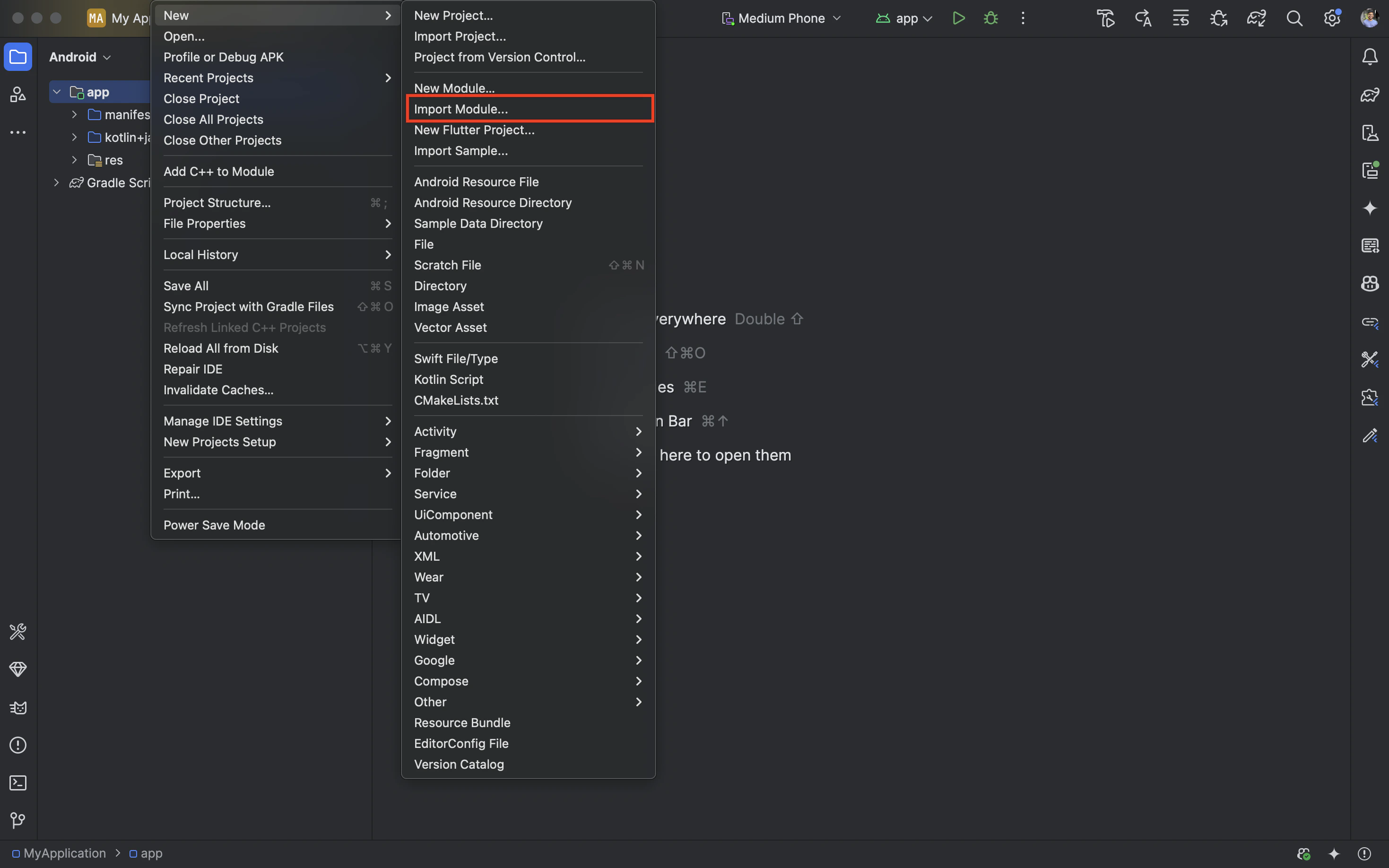
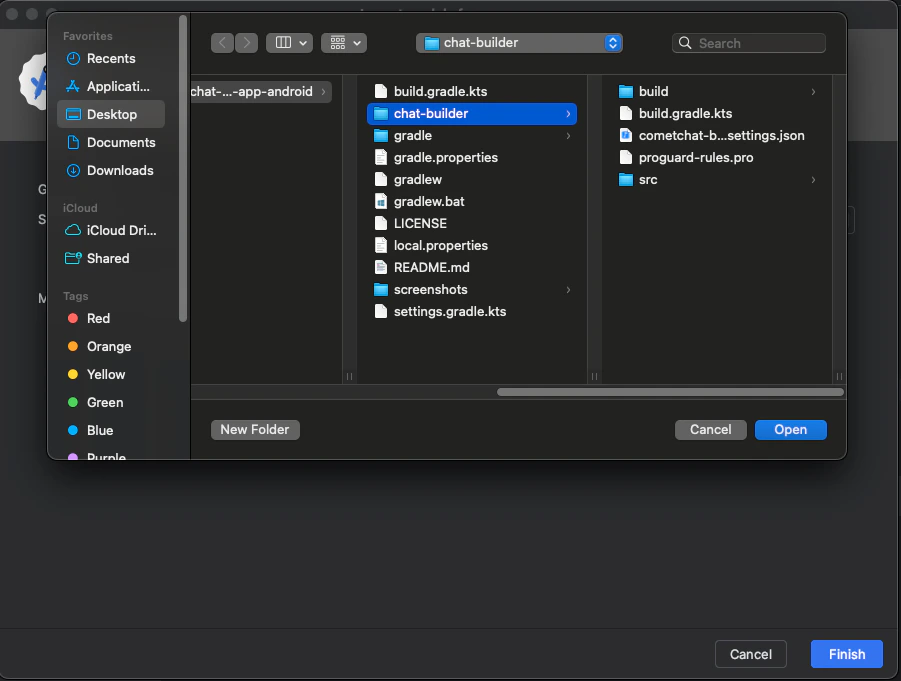
In Android Studio:- Go to File → New → Import Module
- Select the sample app folder
- Click Finish
Step 5: Add Module Dependency
Add the module dependency to your app’sbuild.gradle.kts:
Step 6: Add Jetifier Flag
Add to yourgradle.properties:
Step 7: Add CometChat Repository
Add the CometChat repository tosettings.gradle.kts:
Step 8: Verify the Module
Ensure the imported module is visible in your project and contains all necessary files.Step 9: Launch Activities
Launch CometChat activities based on your app’s state: If CometChat is not initialized or user is not logged in:Important Guidelines for Changes
Functional Changes:
For enabling or disabling features and adjusting configurations, make the necessary updates in the
CometChatBuilderSettings.kt file. This file contains all the feature flags and configuration constants.UI and Theme-related Changes:
For any updates related to UI, such as colors, fonts, and styles, you should apply your changes in the
themes.xml file of the module itself.Troubleshooting
Plugin Not Found
- Ensure you have internet connectivity during Gradle sync
- Check that the plugin version is correct:
5.0.1 - Verify the CometChat Maven repository is added to
pluginManagementinsettings.gradle.kts
CometChatBuilderSettings Not Generated
- Make sure
cometchat-builder-settings.jsonis in the correct location (app module root directory) - Clean and rebuild your project: Build > Clean Project > Rebuild Project
- Check the Gradle build output for any errors
BuilderSettingsHelper Import Errors
- Verify you’ve updated the package declaration to match your project
- Check that all
CometChatBuilderSettingsimports are correct - Ensure the Builder plugin has generated the settings file
Next Steps
Builder Settings
Understand the settings file and feature toggles.
Customizations
Adjust component props, behavior, and UI elements.
Directory Structure
See how the exported code is organized.
UI Kit Theme
Customize colors, typography, and styling to match your brand.