

Prerequisites
Before getting started, make sure you have:- Node.js 18 or higher
- React Native 0.77+ (CLI or Expo bare workflow)
- iOS tooling: macOS with Xcode 14+, CocoaPods, iOS 12+ simulator/device
- Android tooling: Android Studio with SDK 33+, Android 5.0+ device/emulator
- Internet connection (required for CometChat services)
- An active CometChat app (App ID, Auth Key, and Region)
Complete Integration Workflow
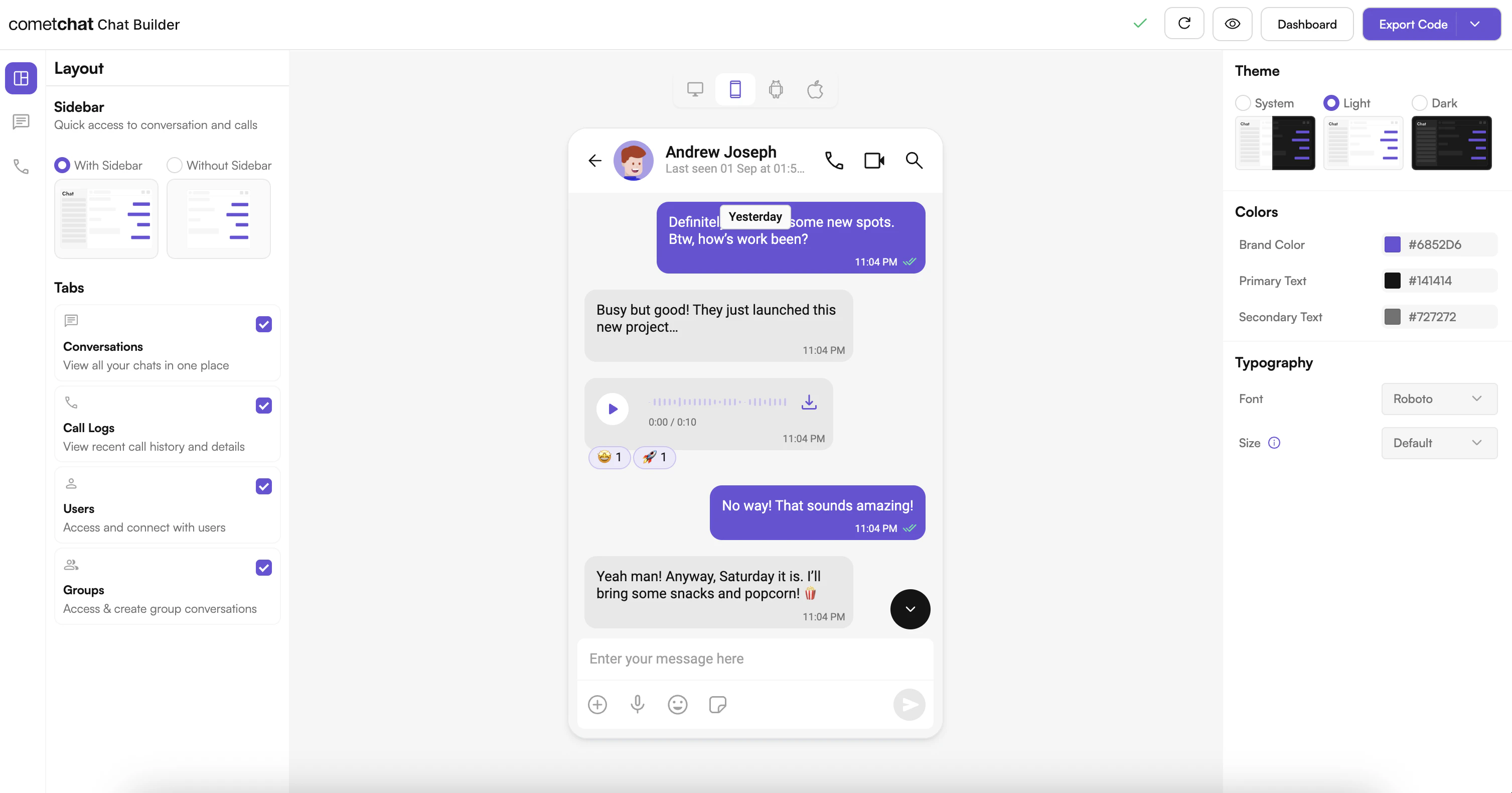
- Design Your Chat Experience - Use the UI Kit Builder to customize layouts, features, and styling.
- Review and Export - Review which features will be enabled in your Dashboard, toggle them on/off, and download the generated code package.
- Preview Customizations - Optionally, preview the chat experience before integrating it into your project.
- Integration - Integrate into your existing application using either the Sample App or Configuration Store method.
- Customize Further - Explore advanced customization options to tailor the chat experience.
Launch the UI Kit Builder
- Log in to your CometChat Dashboard.
- Select your application from the list.
- Navigate to Integrate → React Native → Launch UI Kit Builder.
Integration Options
Choose one of the following integration methods based on your needs:| Option | Best For | Complexity |
|---|---|---|
| Run Sample App | Quick preview and testing of Builder configurations | Easy |
| Integrate Config Store (Recommended) | Production apps where you want full control over customization | Medium |
Option 1: Run the CometChat UIKit Builder Sample App
Step 1: Download & Install
Step 2: iOS Dependencies
Step 3: Configure CometChat Credentials
Editsrc/utils/AppConstants.tsx:
Step 4: Run the Builder Sample
Option 2: Integrate Builder Configuration into Your React Native App
This method gives you full control over customization and is recommended for production apps.Step 1: Install Shared Dependencies
Step 2: Copy Configuration Files
From the sample project, copy these essential files to your existing React Native project:- Source:
src/config/store.ts(Zustand store that manages Builder settings) - Source:
src/config/config.json(default configuration template) - Destination:
yourProject/src/config/
Step 3: Wire the Builder Theme into UI Kit
Step 4: Respect Feature Toggles in UI Kit Components
Access feature configurations from the store to control which features are enabled:- Chat features (typing indicator, threads, mentions, reactions, etc.)
- Call features (1:1 voice, group video, lobby)
- Layout and discovery (tabs, sidebar, chat type)
settings.chatFeatures, settings.callFeatures, and settings.layout inside the Builder JSON, so you can decide which CometChat components to render or hide per experience.
Important Guidelines for Changes
Functional Changes:
For enabling or disabling features and adjusting configurations, update the
config.json file or modify the Zustand store. This controls all feature flags and configuration constants.UI and Theme-related Changes:
For any updates related to UI, such as colors, fonts, and styles, modify the theme object passed to
CometChatThemeProvider.Enable Features in CometChat Dashboard
If your app needs any of these features, enable them from your Dashboard:- Stickers
- Polls
- Collaborative whiteboard
- Collaborative document
- Message translation
- AI User Copilot: Conversation starter, Conversation summary, Smart reply
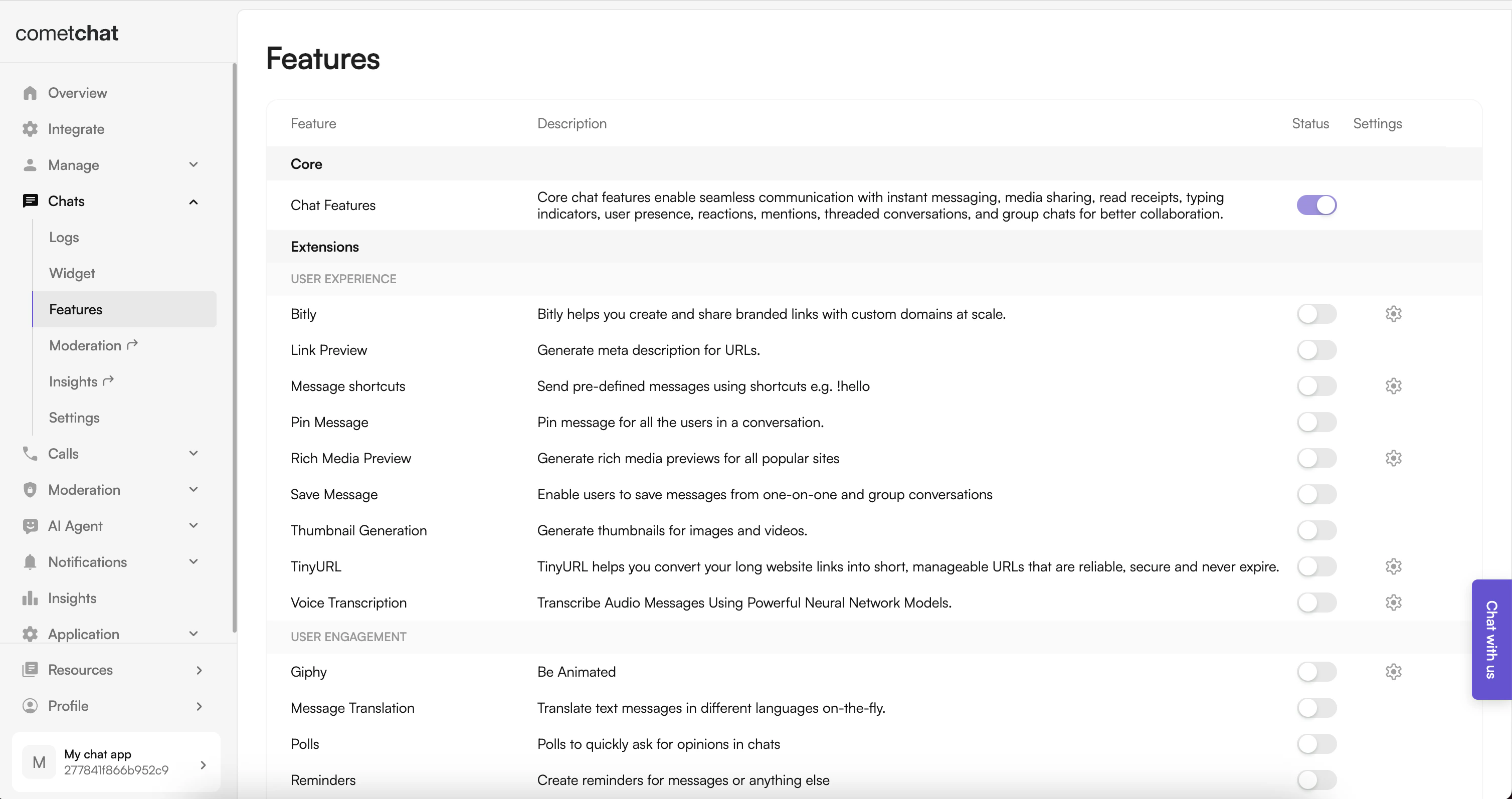
- Log in to the Dashboard.
- Select your app.
- Navigate to Chat → Features.
- Toggle ON the required features and Save.
What You Can Configure
Toggle these features on or off directly in the UI Kit Builder. For a full reference of each setting, see UI Kit Builder Settings.Chat Features
| Category | Includes |
|---|---|
| Core Messaging Experience | Typing indicators, threads, media sharing (photos, video, audio, files), edit & delete messages, read receipts, search, quoted replies, mark as unread |
| Deeper User Engagement | Mentions, @all mentions, reactions, message translation, polls, collaborative whiteboard & document, voice notes, emojis, stickers, user & group info |
| AI User Copilot | Conversation starters, conversation summaries, smart replies |
| User Management | Friends-only mode |
| Group Management | Create groups, add members, join/leave, delete groups, view members |
| Moderation | Content moderation, report messages, kick/ban users, promote/demote members |
| Private Messaging Within Groups | Direct messages between group members |
| In-App Sounds | Incoming & outgoing message sounds |
Call Features
| Category | Includes |
|---|---|
| Voice & Video Calling | 1:1 voice calling, 1:1 video calling, group voice conference, group video conference |
Layout
| Category | Includes |
|---|---|
| Sidebar | With Sidebar or Without Sidebar mode |
| Tabs | Conversations, Call Logs, Users, Groups |
Theming
| Category | Includes |
|---|---|
| Theme | System, Light, or Dark mode |
| Colors | Brand color, primary & secondary text colors (light & dark) |
| Typography | Font family, text sizing (default, compact, comfortable) |
Troubleshooting
Metro or Gradle Errors
- Ensure Node 18+, React Native 0.77+, and the correct Android/iOS toolchains are installed
- Clean and rebuild:
npm start --reset-cache
Plugin/Config Not Loading
- Verify
AppConstants.tsxvalues are correct - Check network connectivity when launching the Builder
QR Code Parsing Issues
- Validate that the JSON matches the configuration schema
- Malformed objects will be ignored
UI Kit Mismatches
- Confirm both the Builder sample and your production app use the same version of
@cometchat/chat-uikit-react-native
Next Steps
Builder Settings
Understand the settings file and feature toggles.
Customizations
Adjust component props, behavior, and UI elements.
Directory Structure
See how the exported code is organized.
UI Kit Theme
Customize colors, typography, and styling to match your brand.