

Prerequisites
Before running this project on iOS, make sure you have:- Xcode (latest version recommended)
- macOS device with macOS 12.0 or above
- iOS Device or Simulator with iOS 13.0 or above
- CocoaPods (latest version installed)
- Internet connection (required for CometChat services)
Complete Integration Workflow
- Download the Project - Download the project zip from the CometChat Dashboard and extract it.
- Install Dependencies - Install CocoaPods dependencies.
- Configure Settings - Load UI Kit Builder settings from JSON file.
- Build & Run - Build and run the project in Xcode.
Launch the UI Kit Builder
- Log in to your CometChat Dashboard.
- Select your application from the list.
- Navigate to Chat & Messaging → Get Started.
- Navigate to Integrate → iOS → Launch UI Kit Builder.
Integration Options
Choose one of the following integration methods based on your needs:| Option | Best For | Complexity |
|---|---|---|
| Run Sample App | Quick preview and testing of Builder configurations | Easy |
| Integrate Config Store (Recommended) | Production apps where you want full control over customization | Medium |
Option 1: Run the Sample App
Setup
Step 1: Download and Extract Project
Download the project zip from the CometChat Dashboard and extract it.Step 2: Navigate to Project Folder
Step 3: Open Xcode Project
Open the.xcodeproj file once to let Xcode configure the project.
Step 4: Install Dependencies
Install dependencies using CocoaPods:Step 5: Open Workspace
Open the.xcworkspace file instead of .xcodeproj from now on:
Step 6: Build & Run
Build and run the project in Xcode.Option 2: Integrate Builder Configuration into Your iOS App
This method gives you full control over customization and is recommended for production apps.Installation (CometChatBuilder)
CocoaPods
Add to yourPodfile:
Swift Package Manager (SPM)
- Open your Xcode project.
- Go to File → Add Packages.
- Enter the URL of your Git repository (or local path) where
CometChatBuildercode is hosted. - Select the
CometChatBuilderpackage and add it to your app target.
Load Settings from JSON
Use this method if you are shipping a.json configuration file with your app.
Step 1: Add Your JSON File
Place yourcometchat-builder-settings.json inside your app target and make sure:
- It’s added to your target membership.
Step 2: Load Settings at Launch
Important Guidelines for Changes
Functional Changes:
For enabling or disabling features and adjusting configurations, update the
cometchat-builder-settings.json file. This controls all feature flags and configuration constants.UI and Theme-related Changes:
For any updates related to UI, such as colors, fonts, and styles, modify the
CometChatTheme and CometChatTypography properties in your AppDelegate.Enable Features in CometChat Dashboard
If your app needs any of these features, enable them from your Dashboard:- Stickers
- Polls
- Collaborative whiteboard
- Collaborative document
- Message translation
- AI User Copilot: Conversation starter, Conversation summary, Smart reply
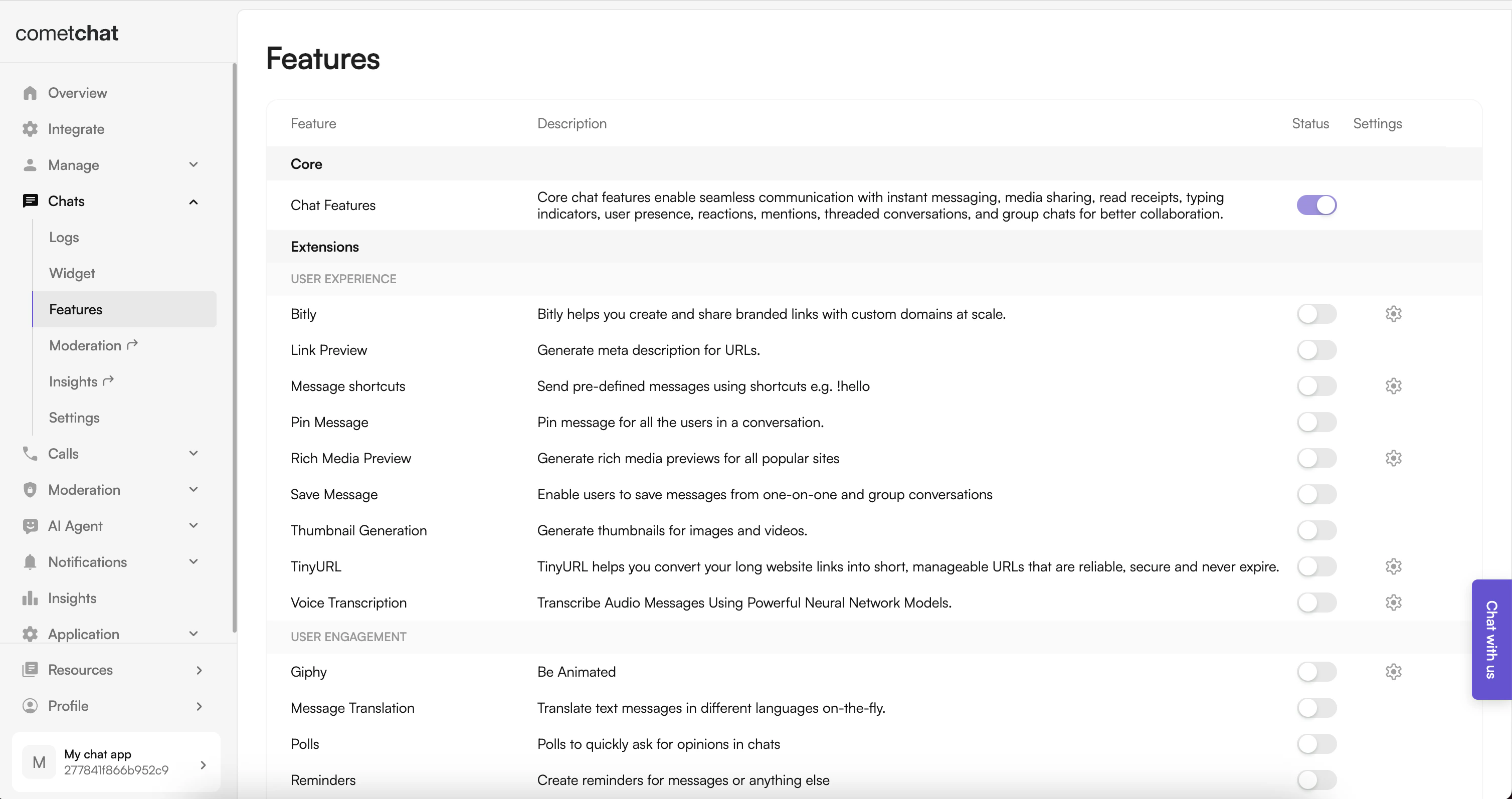
- Log in to the Dashboard.
- Select your app.
- Navigate to Chat → Features.
- Toggle ON the required features and Save.
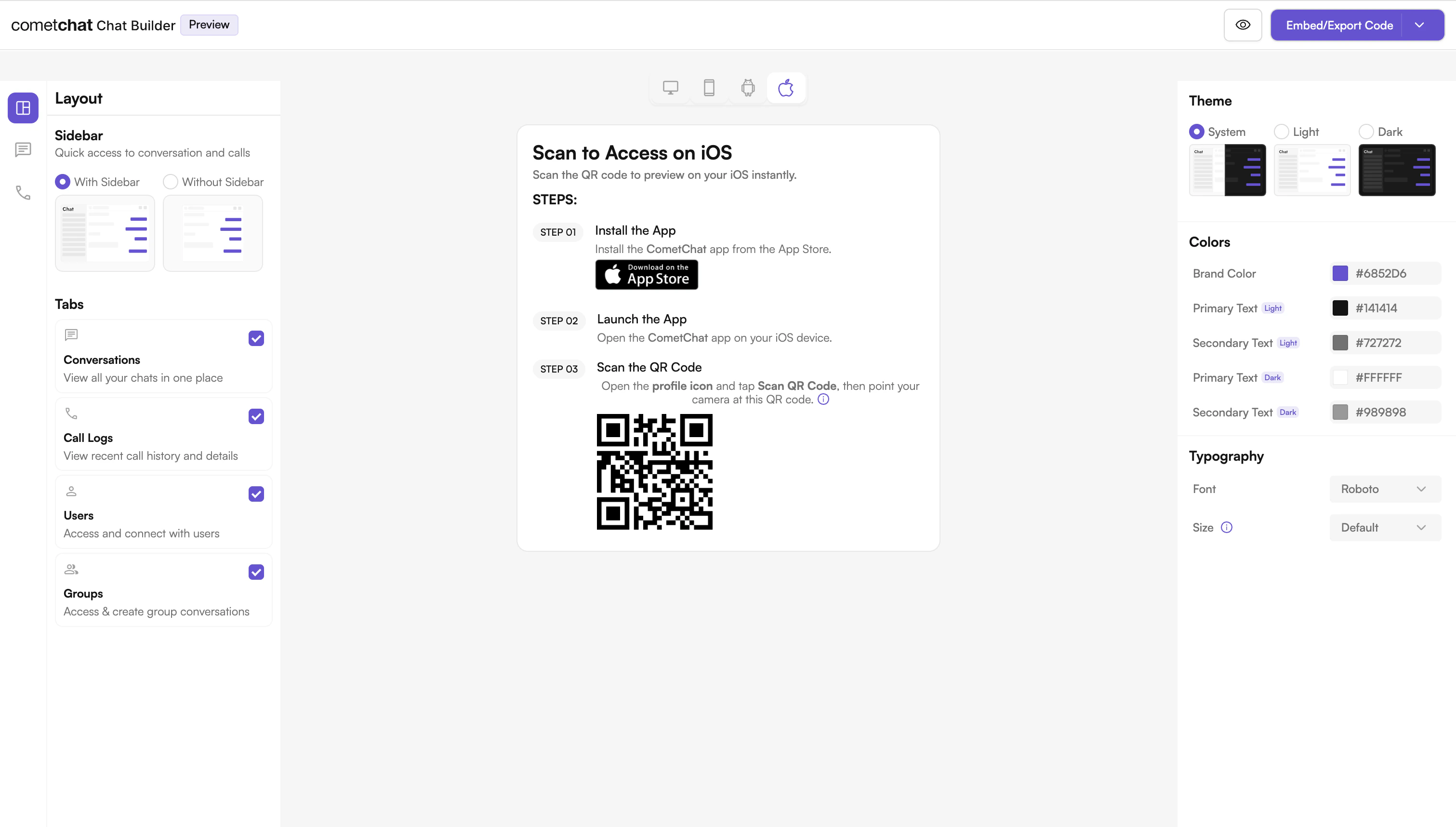
What You Can Configure
Toggle these features on or off directly in the UI Kit Builder. For a full reference of each setting, see UI Kit Builder Settings.Chat Features
| Category | Includes |
|---|---|
| Core Messaging Experience | Typing indicators, threads, media sharing (photos, video, audio, files), edit & delete messages, read receipts, search, quoted replies, mark as unread |
| Deeper User Engagement | Mentions, @all mentions, reactions, message translation, polls, collaborative whiteboard & document, voice notes, emojis, stickers, user & group info |
| AI User Copilot | Conversation starters, conversation summaries, smart replies |
| User Management | Friends-only mode |
| Group Management | Create groups, add members, join/leave, delete groups, view members |
| Moderation | Content moderation, report messages, kick/ban users, promote/demote members |
| Private Messaging Within Groups | Direct messages between group members |
| In-App Sounds | Incoming & outgoing message sounds |
Call Features
| Category | Includes |
|---|---|
| Voice & Video Calling | 1:1 voice calling, 1:1 video calling, group voice conference, group video conference |
Layout
| Category | Includes |
|---|---|
| Sidebar | With Sidebar or Without Sidebar mode |
| Tabs | Conversations, Call Logs, Users, Groups |
Theming
| Category | Includes |
|---|---|
| Theme | System, Light, or Dark mode |
| Colors | Brand color, primary & secondary text colors (light & dark) |
| Typography | Font family, text sizing (default, compact, comfortable) |
Troubleshooting
JSON File Not Found
- Ensure your
cometchat-builder-settings.jsonis added to the app bundle. - Confirm the file is included in your app target’s Target Membership.
Network Errors
- Network errors will fallback to user alerts.
- Ensure you have an active internet connection.
SPM Resource Issues
- For SPM: make sure resources (images) are in
CometChatBuilder.bundle. - Confirm package resources are available to your target.
QR Code Issues
- Ensure your QR code is valid and generated from the official builder.
- Confirm active network connectivity.
Next Steps
Builder Settings
Understand the settings file and feature toggles.
Customizations
Adjust component props, behavior, and UI elements.
Directory Structure
See how the exported code is organized.
UI Kit Theme
Customize colors, typography, and styling to match your brand.